

Amazon variations: how to split them with one click from Seller Central
Amazon has introduced two new options in Seller Central to split variations without using the flat file. You can find them on the inventory screen. For those managing large catalogues it is an interesting new feature but… with a few precautions that we will look at below.
Subscribe to Newsletter
Articles, mini-guides and updates on Amazon world from leading insiders.
What changes in managing Amazon variations
Until now, the most reliable method for working on variation families was the inventory file. The old Variation Wizard was slow and not very accurate, and it often saved the change in Seller Central without carrying it over to the product page.
The Manage Inventory menu now shows two new options instead: Detach from Family and Ungroup Variation Family, spotted by the My Amazon Guy YouTube channel in early November. According to the sources we consulted, Amazon had not yet published a dedicated help page, so it is worth checking case by case whether the options are already available in your own account.
Read also our article Amazon simplifies product variation management with pre-filled Excel files
Detach from Family: detaching a single variation
The option is in the three-dot menu next to the child ASIN, and it removes only that product from the family. The other variations stay linked to the parent.
Clearly, it is the right option when a colour or size has ended up in the wrong family. This way you avoid rebuilding the whole structure to fix a single SKU.
Read also our article All the Amazon news for October 2026
Ungroup Variation Family: splitting the whole family
The option is in the family menu, i.e. at parent level. It separates all the child ASINs in the group and is useful, for example, when the variation theme has been wrong from the start.
Amazon has not explained what happens to the parent after the split. That is why it is worth running a test on a family with few sales.
Read also our guide Amazon inventory management: a guide to warehouse optimisation
Which method to choose: the comparison
| Method | Effect | When to use it |
|---|---|---|
| Detach from Family | A single child leaves the family | One SKU in the wrong family |
| Ungroup Variation Family | The whole family is split | Wrong variation theme |
| Inventory file upload | Bulk parent-child changes | Large catalogues |
| Deleting the parent | The children become standalone products | Only if the new options do not appear |
Read also our article Why Amazon sometimes deletes listings: what causes it and how to act
Why the change might not reach the product page
The main risk clearly concerns the public page. A change may show as completed in Seller Central and remain invisible in the store. The Variation Wizard’s track record makes this scenario quite plausible.
In addition, so-called ghost parents may appear: parent ASINs that remain visible, or seem linked to a child, after the split. They can come from Vendor Central contributions or from Amazon automatically creating variations.
So, after every change, compare Seller Central with the live page. If the two do not match, the inventory file remains plan B.
Are you really making a profit?
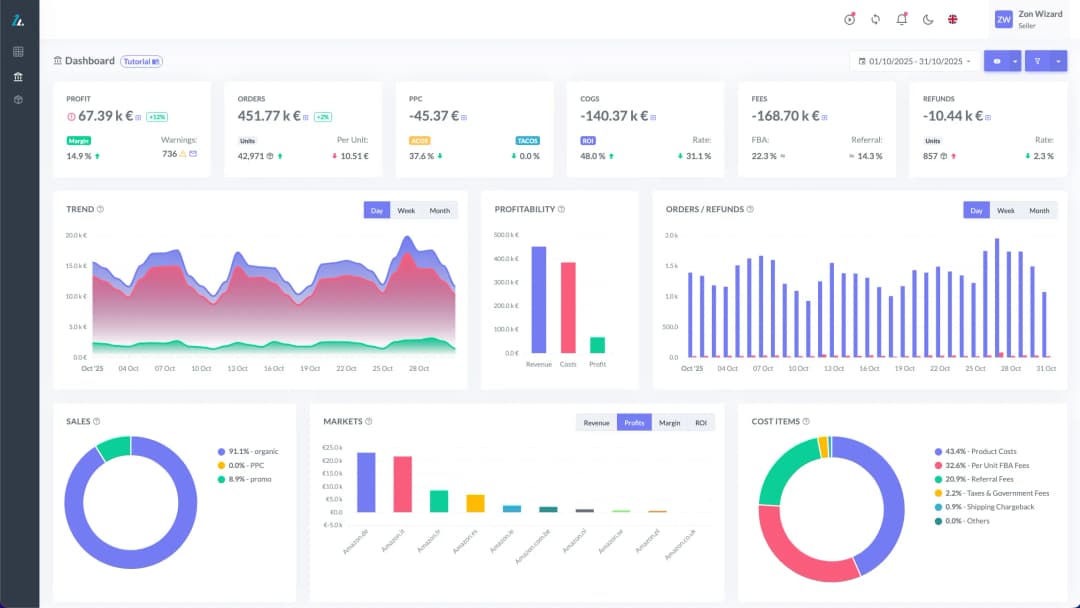
See your true net margin on every order with ZonWizard's profit analytics.
Learn MoreAdd Products replaces the Variation Wizard
According to EcomCrew, Amazon announced the Add Products flow on 21 July 2026. The Variation Wizard was retired by the end of August 2026, which means that today the starting point for working on variations is Add Products.
It works simply. You search for the product and open View Variations from its page. From there you have two options. You can create the variations missing from the catalogue, or offer your listing on family members you do not sell yet.
Amazon provides a pre-filled sheet with the current variations and attributes. Just complete the required fields and upload the file. At the end, always check that the product page has changed.
Read also our article Rufus, Amazon’s AI assistant: the features every seller needs to know
Shared reviews: what happens if you detach a child
In 2026 Amazon changed review sharing between variations. According to PPC Land, the announcement came on 7 January. Enforcement started on 12 February and continued category by category until 31 May.
Reviews are no longer shared between variations that differ greatly in function or specifications. Those that only differ in colour, pattern, pack quantity or size with the same function are still shared.
Amazon has not documented how the new options affect this mechanism. So, before any change, note the rating and number of Amazon reviews of each child ASIN, as a point of comparison.
Read also our article New Selection Program (2026): how it works and what changes for those launching new products on FBA
How to proceed safely
A simple checklist greatly reduces the risks, especially on the products that generate the most revenue.
- Check that the two new options are visible in your account.
- Start with a variation family with few sales.
- Take a screenshot of the parent and children before the change.
- Check the live page, the remaining family and the reviews after the change.
- Keep the inventory file ready as an alternative.
Read also our article Understanding all the Amazon fees
Keeping catalogue, margins and stock under control with ZonWizard
Splitting or merging variations changes the structure of the catalogue. Sales data and margins per ASIN change too. So you need a tool that keeps them readable at all times.
ZonWizard connects to Amazon through its integration and brings your business data together in one place. With the Profit Tool you can also check margins product by product after every reorganisation. Finally, if you sell on several channels, a synchronised inventory prevents overselling. You will find all the features on the features page.
Read also our article Amazon’s artificial intelligence does not look at the rankings (and for sellers that is very interesting!)
Want to know more? Contact us
Do you have doubts about the structure of your variations or about managing your Amazon catalogue? Our team can help you assess your case.
Contact us to find out more about ZonWizard and how to manage your Amazon business at its best!
Know your real Amazon profit
Track margins, fees and net profit in one clear dashboard with ZonWizard.
Learn MoreLoading…

Amazon translates product images with AI: what changes for international sellers
Amazon has recently rolled out a feature many international sellers had been waiting for: automatic translation of the text inside product images. Thanks to artificial intelligence, the text overlaid on images (from size charts to technical specs, from feature callouts to comparison infographics) is now translated automatically into the customer’s language, without the seller having…
September 1st, 2026

Amazon Port 2026: all the news from the Cannes Festival and what changes for those who sell on Amazon
Every year the Cannes Festival of Creativity also becomes the showcase where Amazon Ads reveals where it is taking advertising on its own platform. In the 2026 edition, Amazon Port certainly did not disappoint expectations. And, as was to be expected, the event had a single common thread: artificial intelligence. Let’s look point by point…
July 9th, 2026
Ready to transform your business?
Start your free 30-day trial today, setup takes just a few minutes. No credit card required, cancel anytime.